
How to use NURISTAY
A tour of the screens you will use every day, with real screens from our demo motel.
Getting started
Get your account
NURISTAY sets up your property, rooms and logins for you – there is no self sign-up. Request a demo to get started.
Sign in
Your property has its own login page (for example …/login/your-property-name/). Enter your username and password, then your 6-digit PIN – the first time, you choose your PIN. On your own phone or PC you can tick Remember this device for 30 days.
Use it like an app
Open your menu (your name, top right) and choose Use NURISTAY on this device. On a PC, install it from Edge or Chrome so it opens in its own window; on a phone, add it to your home screen.
Run all your properties with one login
Run more than one property – motels, hotels or holiday parks? Each property has its own rooms, bookings, team and subscription, and you move between them with one login – no signing out and in again.
- 1. Tap the property name
The property you are working on is at the top left of every screen. Tap it to see all your properties.
- 2. Choose another property
The screen you were on – Today, Calendar, Bookings or Stats – switches straight to that property.
- 3. Everything stays separate
Every screen shows only the chosen property, so bookings, rooms and money never mix. Each team member sees only the properties they work at.
Practise without risk: at the bottom of the list, NURISTAY Demo Motel lets you try anything with made-up bookings, and one press brings you back.
All pictures come from NURISTAY Demo Motel: a made-up 16-room motel with made-up bookings. In the moving pictures, the orange circle shows where to click.
Today – your front-desk list
You start here after signing in. One screen shows what needs doing today.
- Rooms tonight, Arrivals, Departures and In house at the top – tap one to open its list.
- Payments today, balances owing, arrivals, departures and more, in cards you can open and close.
- The round + button starts a new booking. Use ← → to see another day.
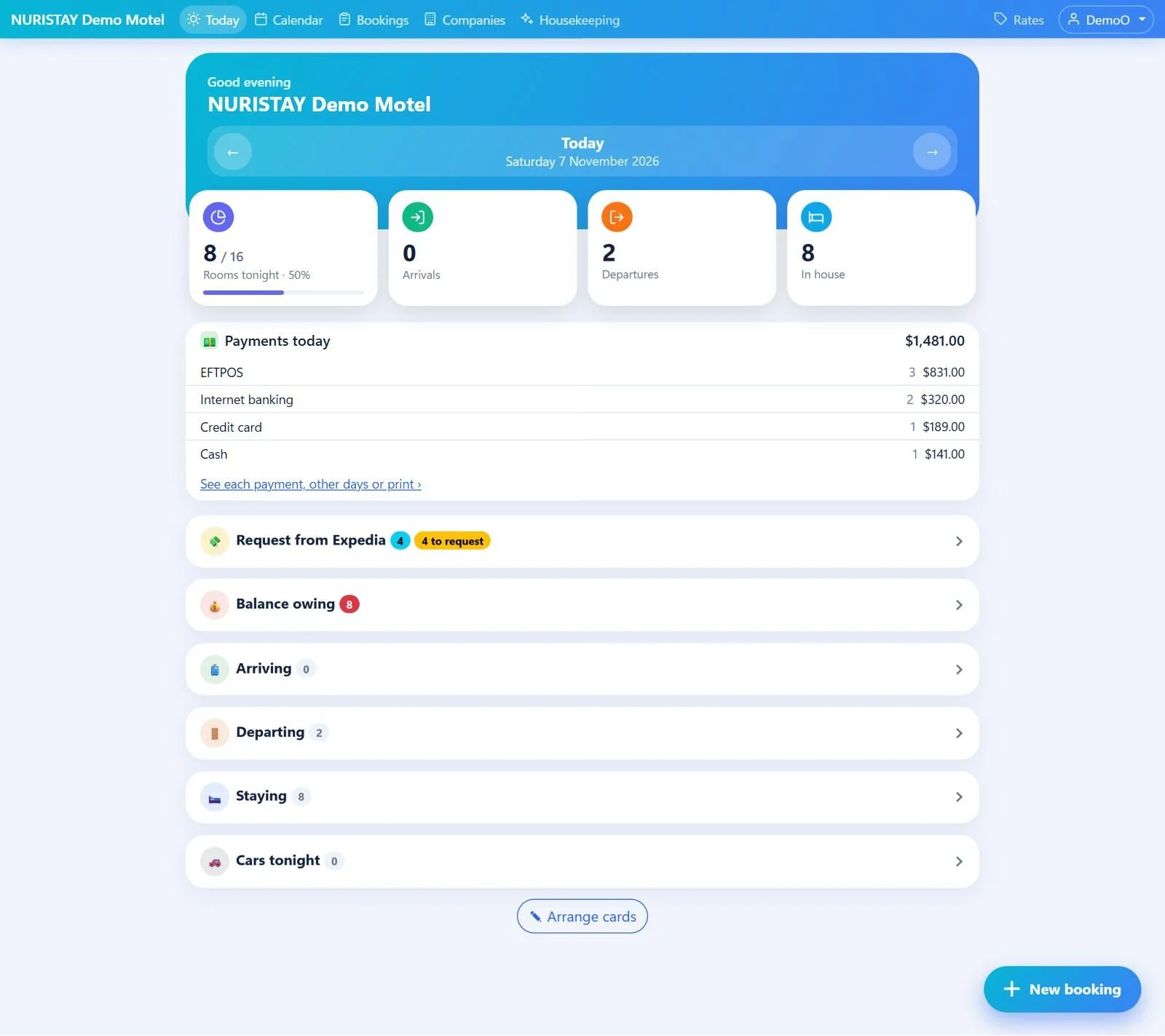
The buttons and cards on Today
See another day. Back to today brings you back.
How many rooms are taken tonight and how full, with a bar. Tap it to open the calendar on that day.
The day at a glance. Tap a tile to open that list.
Today’s money by method – EFTPOS, cash, internet banking – to check against the terminal at the end of a shift. Open it to see each payment, other days or print.
Expedia Collect bookings whose money hasn’t arrived yet, with the amount to request. Press Requested, then Received when the money comes in.
Guests who still owe money, so nobody leaves without paying.
Guests still to arrive, in arrival-time order, with the channel, payment status and what to collect. Press Check in – it tells you if money is still owed.
Press Check out. It reminds you of money owed or a security deposit still held, and can refund the deposit at the same time.
Guests staying over. A stay that carries on in a new booking shows as one stay; a guest who left early gets Ready to sell, to put the room back on sale.
Every guest’s car registration, room by room, to check the car park.
The round button at the bottom right starts a new booking.
Put the cards in your own order, or hide the ones you don’t need. It is saved for your login on every device.
Cards that appear only when there is something to do
- Online check-ins – Guests who checked in online – with a pop-up and a sound on every screen the moment they finish.
- New online bookings – Bookings made on your own booking page.
- Booking emails – Bookings NURISTAY made, changed or cancelled by itself from booking emails today, and emails waiting to be checked.
- Bookings by staff – Who made, changed or cancelled which booking today.
- Charge virtual cards · Charge deposits · Payouts to confirm – Channel money to charge on the card terminal or to match with the bank.
- Possible no-shows · Overdue check-out – Stays that ended without a check-in or a check-out.
- Room changes by NURISTAY – Bookings NURISTAY moved to another room of the same type to fit a new booking in.
Today updates by itself every 15 seconds. Each list opens and closes with a tap, and your phone or computer remembers which ones you left open.
Calendar – the heart of NURISTAY
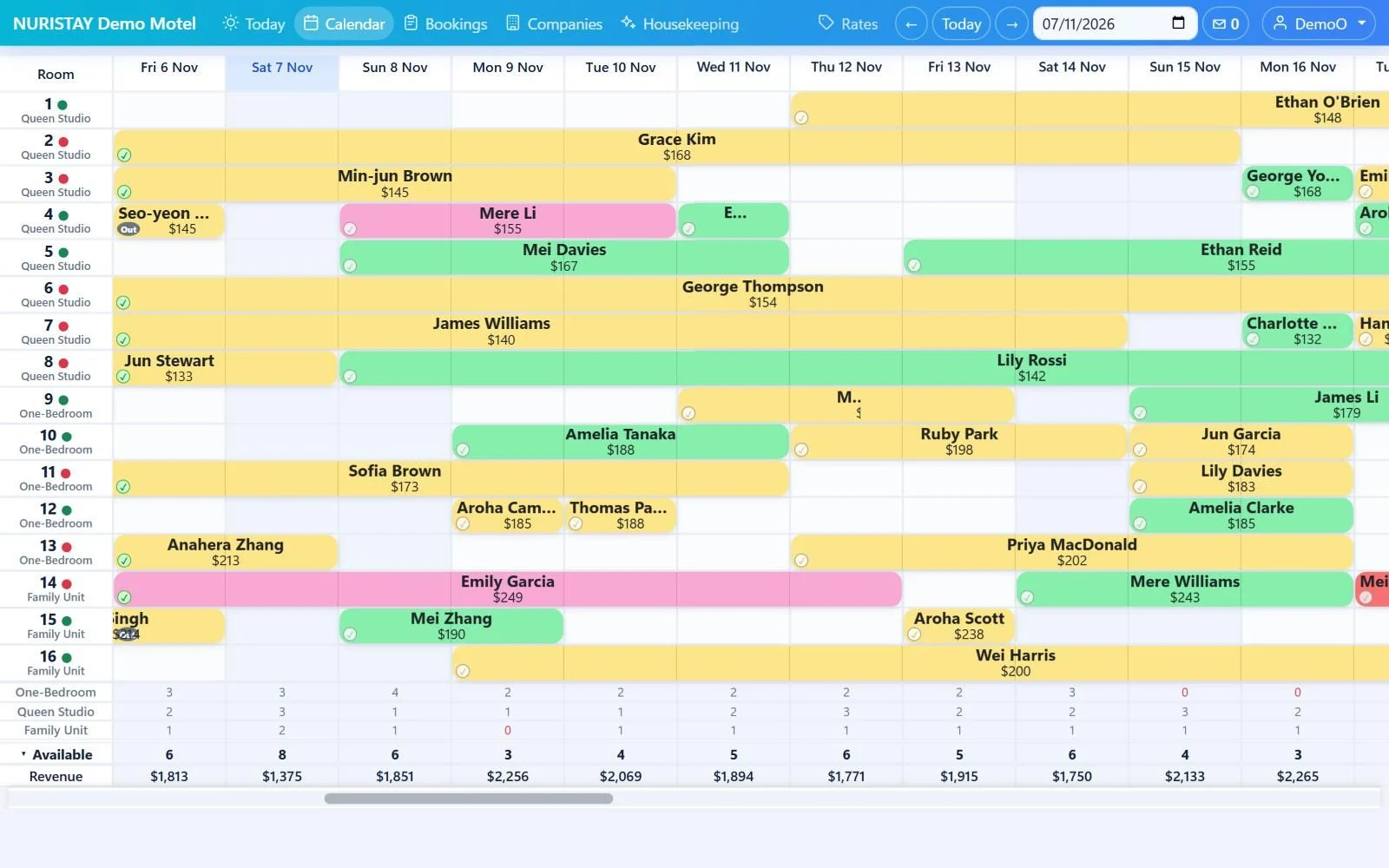
★ Core featureOne row per room, one column per night. Change a stay by dragging it – with the mouse on a computer, or your finger on a phone or tablet – and NURISTAY works out the price for you.
Drag the right end of a booking. NURISTAY suggests the price change (nights × nightly rate) – add it, take it off or keep the price – and updates the payment status by itself.
Drag it sideways to other dates, or up and down to another room. A dotted box shows where it will land, and turns red if that room can’t be sold as the booking’s room type.
Press and hold a booking until the dotted box appears, then drag with your finger. A quick swipe still scrolls, and a tap still opens the booking.
- Extra nights for a Booking.com or Expedia guest can become their own Extension booking, so the channel’s dates and payout stay right.
- Colours show the payment status. Press the small ✓ box on a booking to check the guest in or out.
- Click an empty box to make a new booking for that room and night.
Moving picture: drag the right end one night longer – NURISTAY suggests +$213, and the stay becomes 3 nights and $639. Drag it back and the $213 comes off again.
Check-in – quick, and no paper
Guests check in online before they arrive, or sign the check-in form on your tablet at reception. Everything is saved with the booking in the cloud – nothing to print or file.
Email or text the guest a link. They confirm their details, add photos of their ID and card if you ask, and sign on their own phone.
Press Sign and hand over the tablet: a guest screen in large text, with no menu. The guest ticks the terms, adds their car and signs with a finger – from the check-in day this also checks them in.
Signed check-in and security deposit forms are saved with the booking and kept for 7 years. ID and card photos are encrypted and deleted 7 days after check-out.
- Check-in form then gets a green ✓ and opens the signed form, exactly as the guest saw it.
- Works on any tablet, phone or computer – a touch screen at the front desk too.
- Check a guest in with one press on Today, the booking or the calendar.
Side Panel – bookings beside your screen
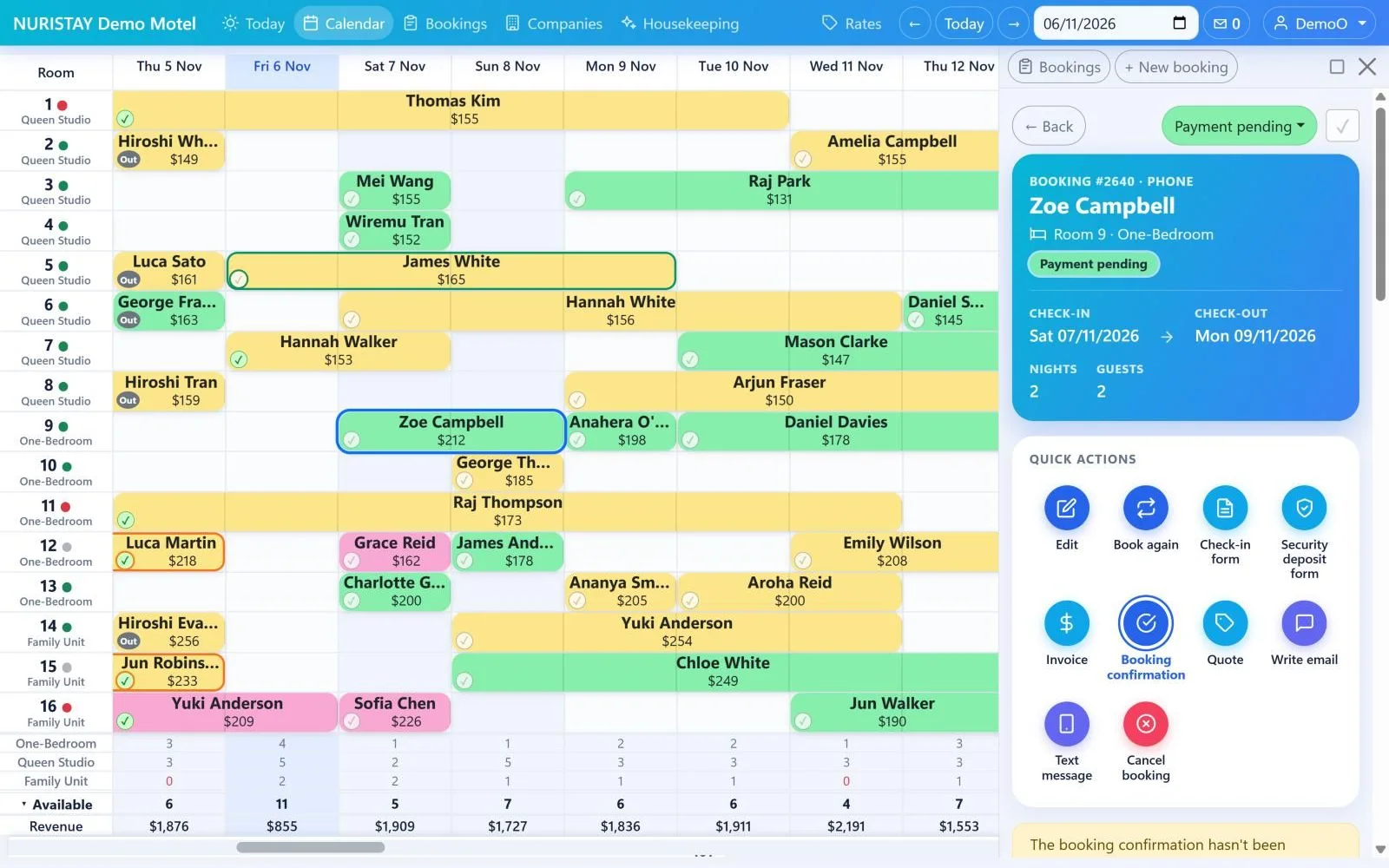
On a computer (a window 1200 pixels or wider), bookings open in a panel on the right, so the calendar or list stays in view.
- Click a booking on the Calendar, Today, Bookings or Housekeeping and it opens in the panel.
- Click another booking and the panel switches straight away – no going back and forth.
- Check in, take a payment, edit or email from the panel. Drag its edge to make it wider, or press □ to fill the window.
On a computer only (a browser window 1200 pixels or wider).
Moving picture: click a booking on the calendar and it opens in the Side Panel; click another and the panel switches.
New booking
Open it with + New booking, or click an empty box on the calendar.
- Choose the room type, room and dates – the free rooms for those dates are shown.
- Fill in the guest, booking channel, cancellation policy and payment, then Save booking.
- Booking emails from Booking.com and Expedia can become bookings by themselves when they are forwarded to NURISTAY.
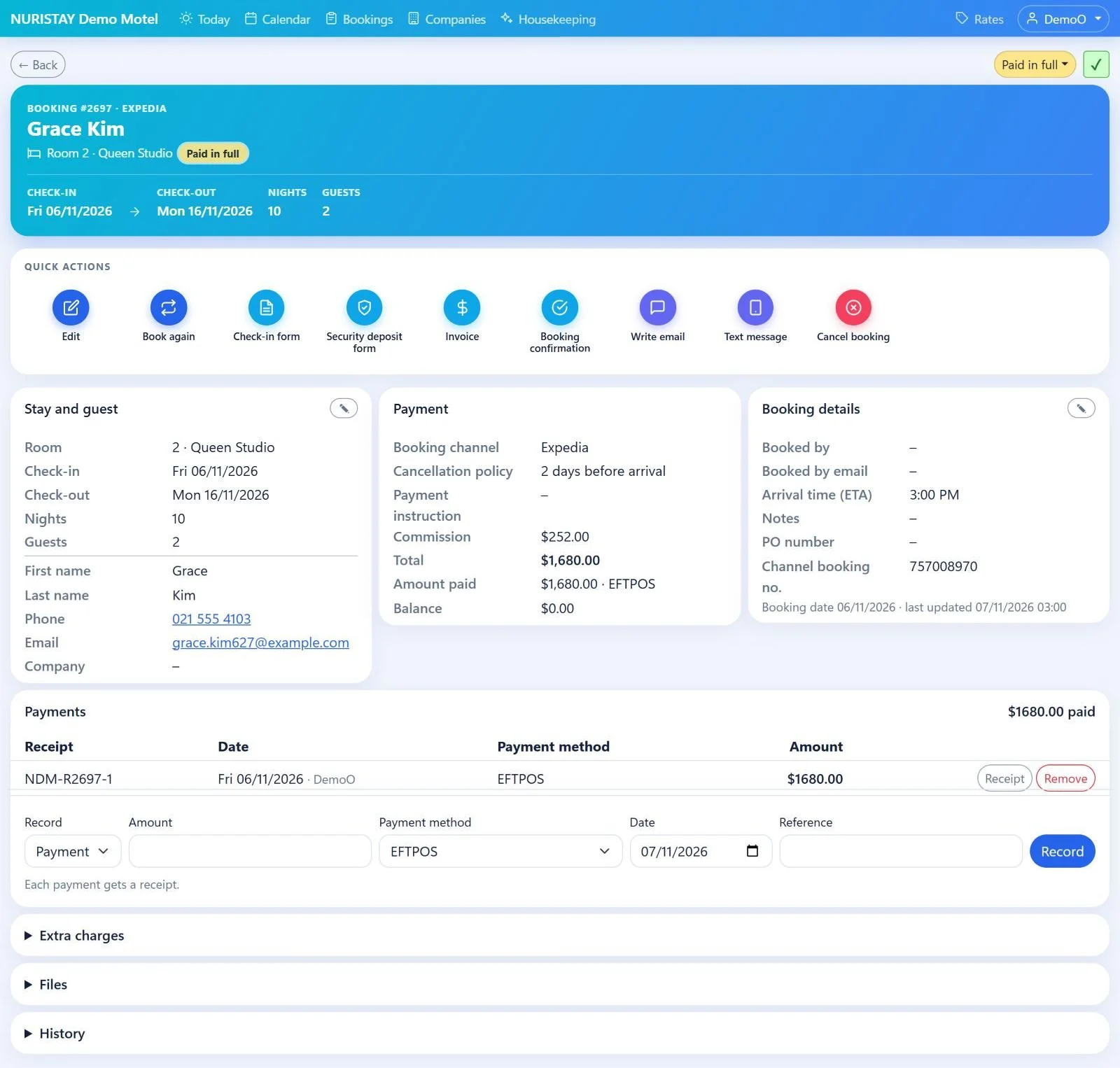
Booking page
Everything about one booking on one page.
- The coloured card shows the guest, room, dates, nights and payment status.
- Quick actions: Edit, Book again, check-in form, invoice, booking confirmation, quote, email or text message, and Cancel booking.
- Send the guest an online check-in link: they confirm their details and sign on their phone.
Bookings – find any booking
Search every booking from one box.
- Type a name, phone, email, company, booking number or channel booking number, then press Enter.
- Narrow the list by status, booking channel and dates.
- Before you search, the 20 most recent bookings are listed.
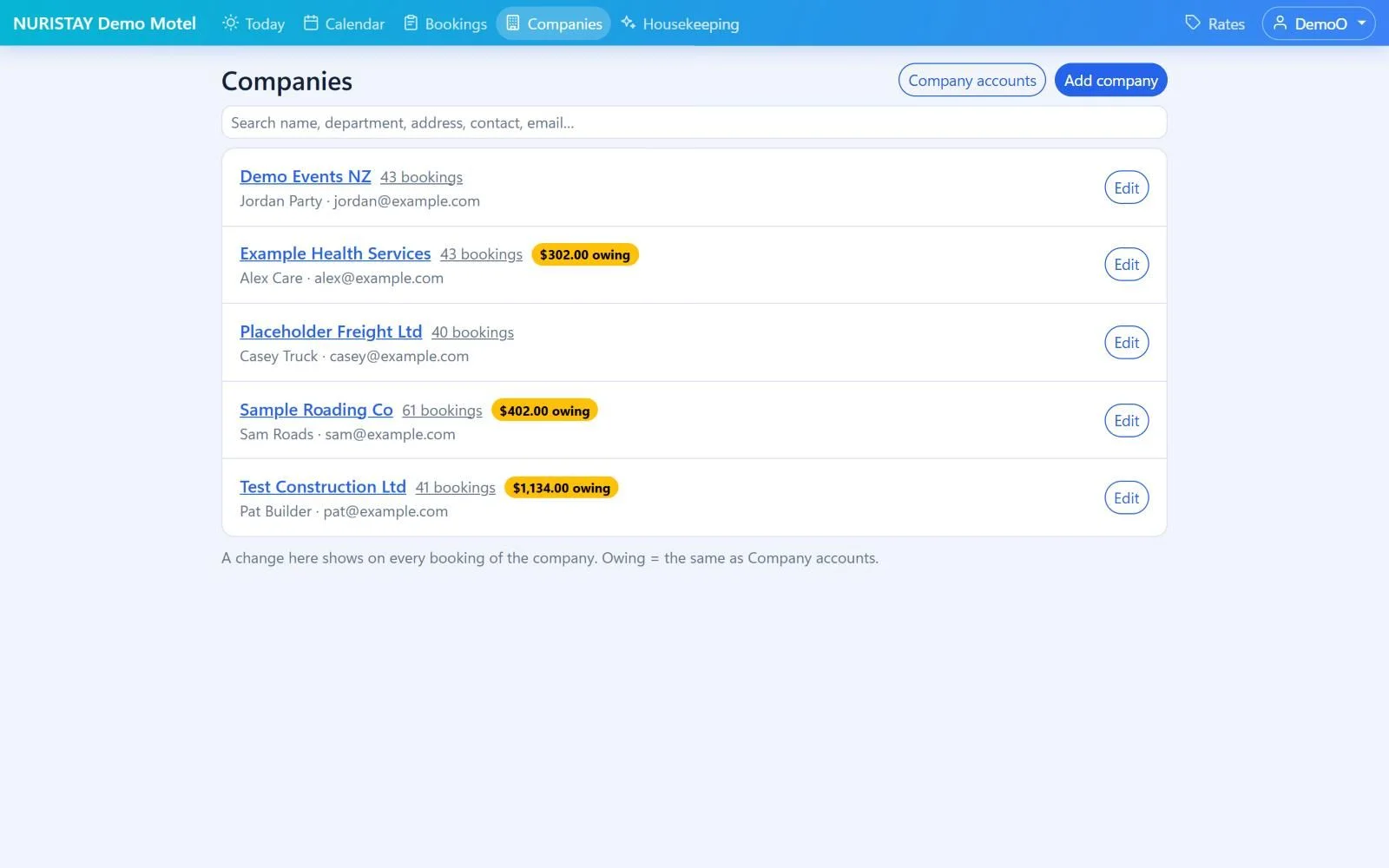
Companies – business guests in one place
The companies that book with you, with their contact person, their bookings and what they owe.
- Each company shows how many bookings it has and any amount owing.
- With the Office Add-on, Company accounts list every unpaid invoice and how long it has been owed.
- A change to a company shows on every booking of that company.
Housekeeping
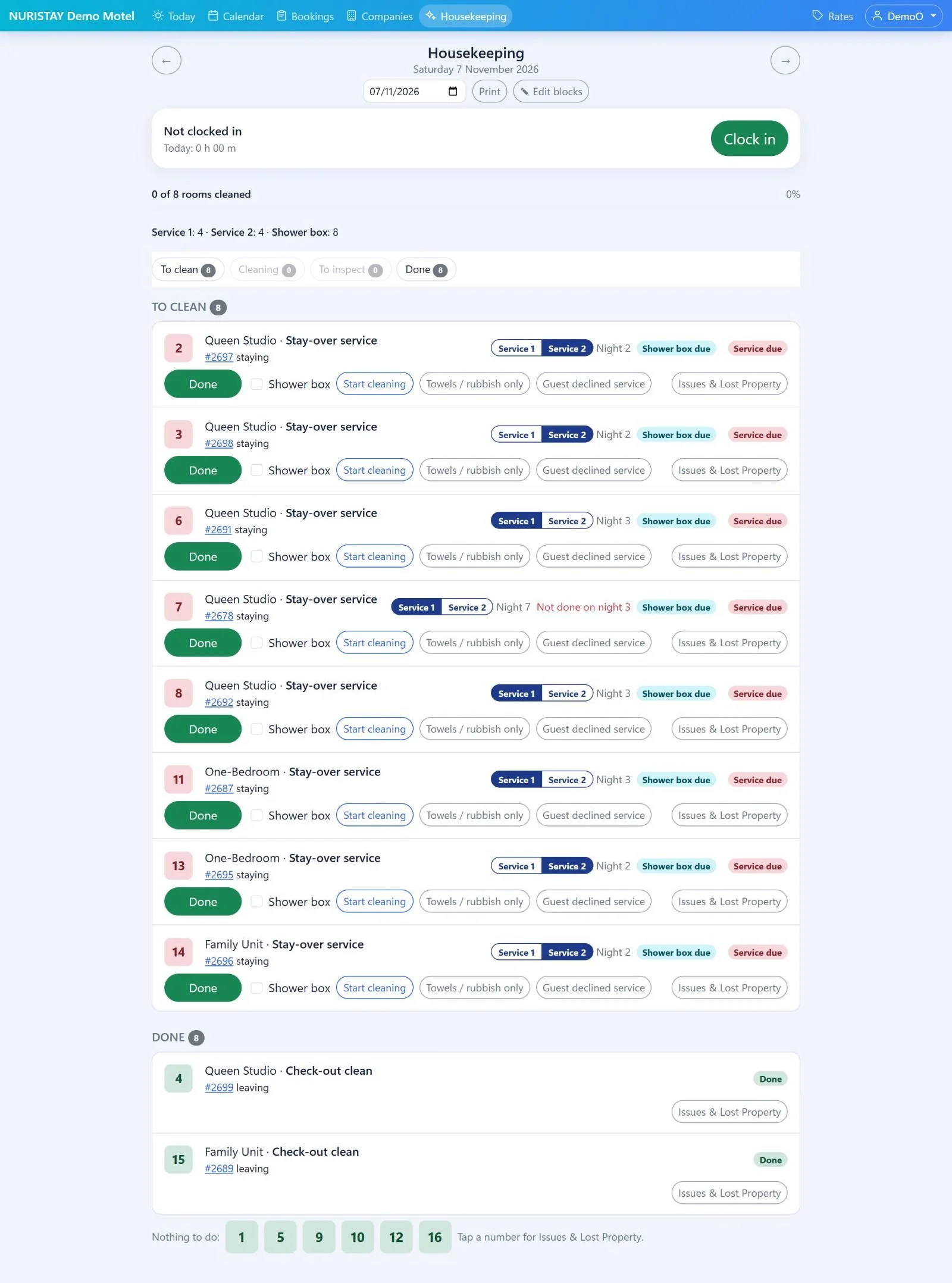
Cleaners update each room on their phone, and the front desk sees it straight away on Today and the calendar.
- Each room shows its job – check-out clean or stay-over service – and the tasks to do.
- Press Start cleaning, then Done. After a check-out clean, the front desk checks the room and presses Inspected.
- Clock in and out on the same screen.
Timesheets and payslips (Office Add-on)
Cleaners and staff clock in and out on their phone, so their hours are recorded as they work. Payslips are made from those hours.
Staff press Clock in on the Housekeeping screen, or send their hours under My timesheet. Gallagher door badges can come in by themselves.
Every shift lands in Timesheets, with rosters and an alert when someone forgets to clock in.
Payslips, hourly or salary, are made from the timesheet hours and emailed to staff – with leave and IRD payday filing.
- Pay settings for each team member: hourly rate, tax code, KiwiSaver and leave.
- Staff see their own payslips, timesheet and leave in their own menu.
- Part of the Office Add-on.
Rates
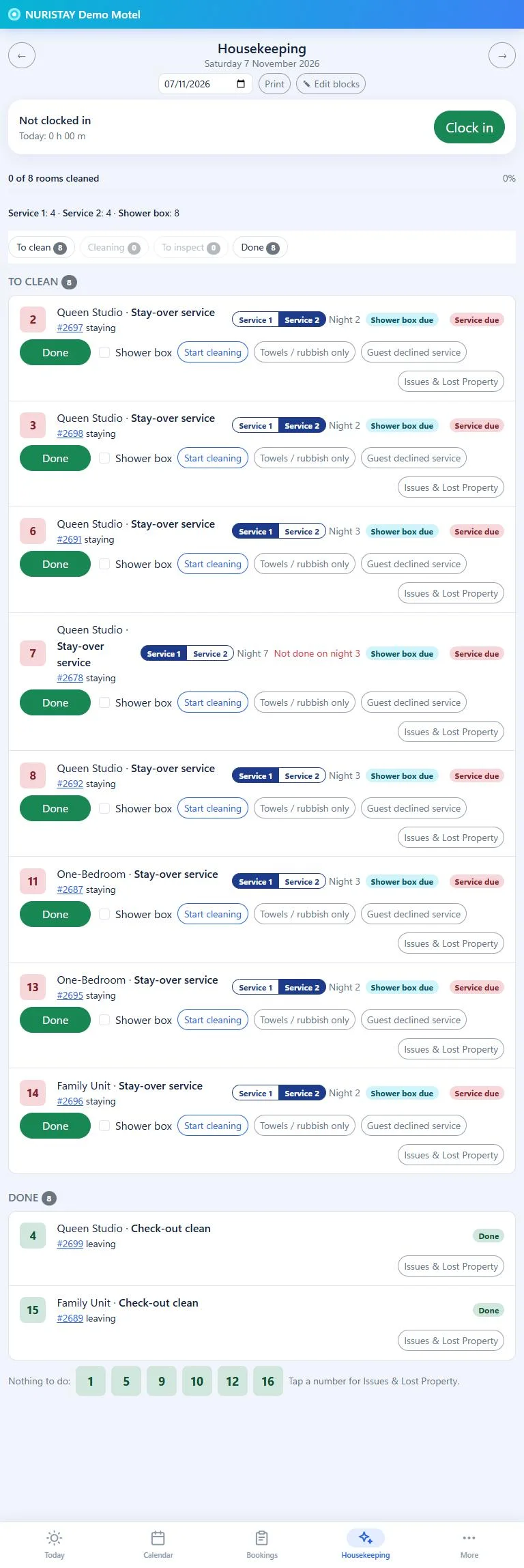
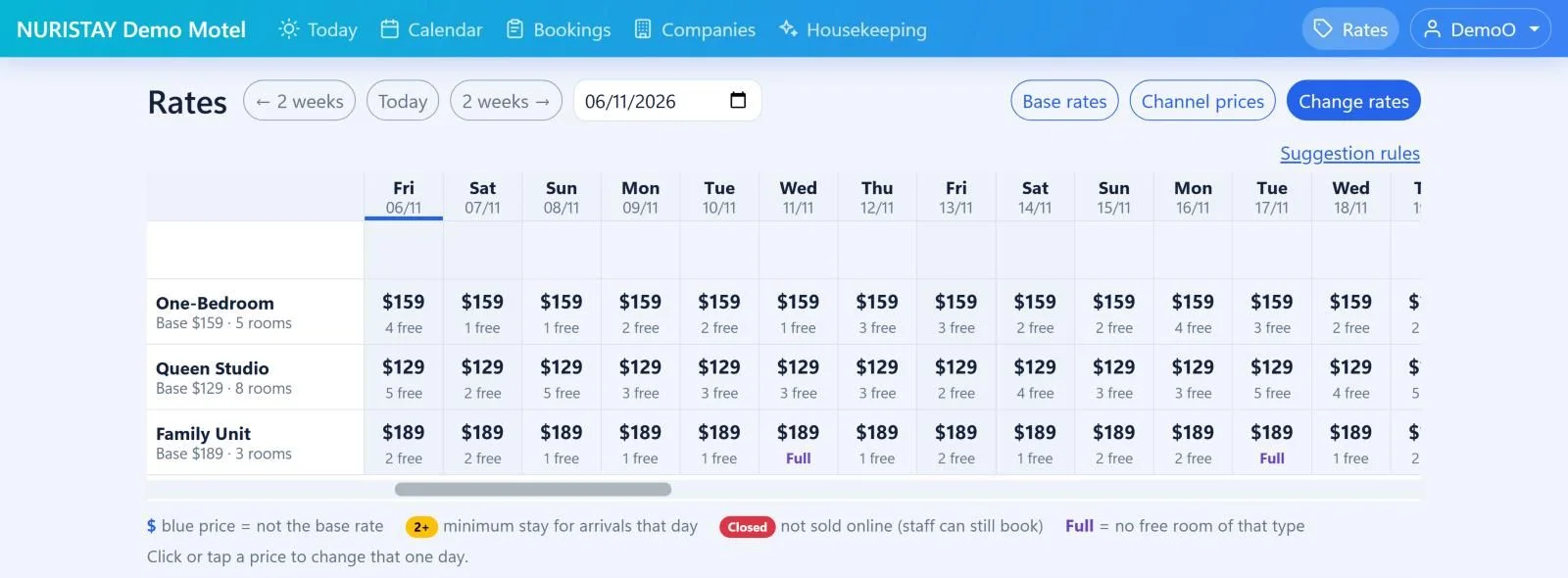
The price of one room for one night, for each room type and each night.
- Set a base rate for each room type, and click a price to change just that day.
- See how many rooms of each type are still free.
- Set a minimum stay, or close a night for online sale.
Moving picture: click a price, type the new price for that day and Save – it turns blue and is listed under Recent changes.
Stats
For managers and owners: how the business is doing.
- Revenue, occupancy, average rate (ADR) and RevPAR by week, month or quarter.
- This year's forecast, compared with last year.
- Revenue by booking channel.
Property – your settings
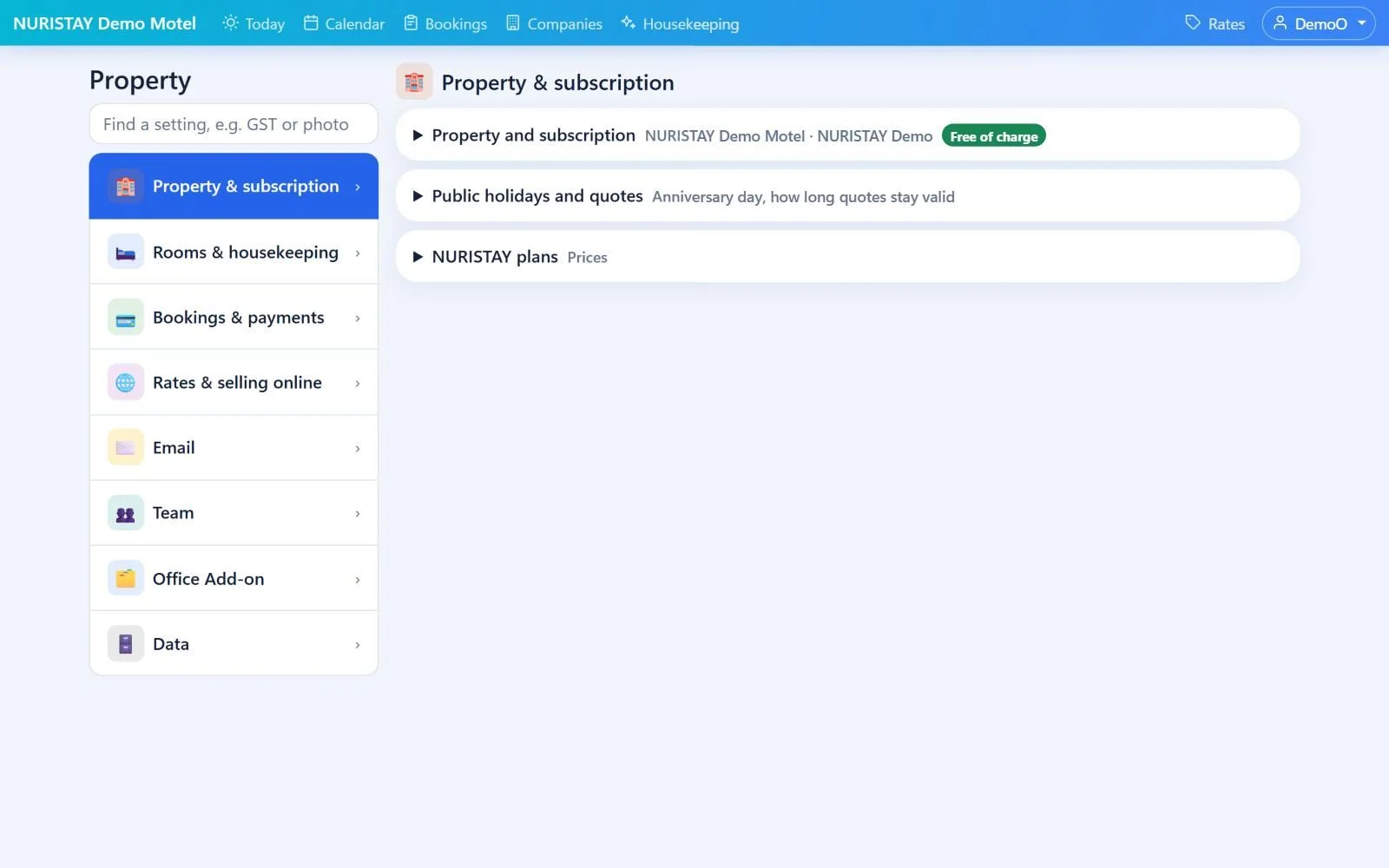
Everything about your property in eight groups, with a search box to find any setting.
- Property & subscription, Rooms & housekeeping, Bookings & payments, and Rates & selling online.
- Email (your mailbox and automatic emails), Team (logins), Office Add-on, and Data (import bookings, backups).
- Type in the search box – for example GST or photos – to go straight to a setting.



Need help getting started? Contact support and we will walk you through it. Support →
See how NURISTAY fits your property
Tell us about your property and we will show you around. The demo is free, with no obligation.